
Download Any to Icon – Convert Images to Windows Icons
Overview
Any to Icon is a practical mobile application designed to simplify the process of converting various image formats into Windows-compatible icons. It addresses a specific yet valuable need for users who require custom or optimized icons for desktop applications, software projects, or personal branding. The app enables users to transform images from formats such as BMP, JPEG, GIF, PNG, and PSD into icons with multiple resolutions, making it particularly useful for developers, designers, and power users working across Windows environments. Despite its specialized function, the application maintains a user-friendly approach, ensuring accessibility for individuals with varying technical expertise.
The target audience includes graphic designers seeking to streamline icon creation, software developers integrating custom UI elements, and general users who wish to personalize their desktop or application interfaces. While the developer has not provided additional background information, the app’s longevity—first released in 2009—suggests a stable and reliable presence in the utility space. Its continued relevance highlights its effectiveness in solving a niche but consistent problem: format conversion and icon optimization.
Real-world use cases include preparing application icons for distribution, creating themed desktop shortcuts, or extracting and reusing existing icons from system folders. In the broader app ecosystem, Any to Icon fills a gap left by mainstream tools that lack deep icon conversion support, offering a focused utility that enhances productivity in digital design workflows.
Key Features & Functionality
- Support for Multiple Image Formats: The app accepts a wide range of input formats, including BMP, JPEG, GIF, PNG, and PSD, allowing users to work with images from diverse sources such as design software, screenshots, or web downloads.
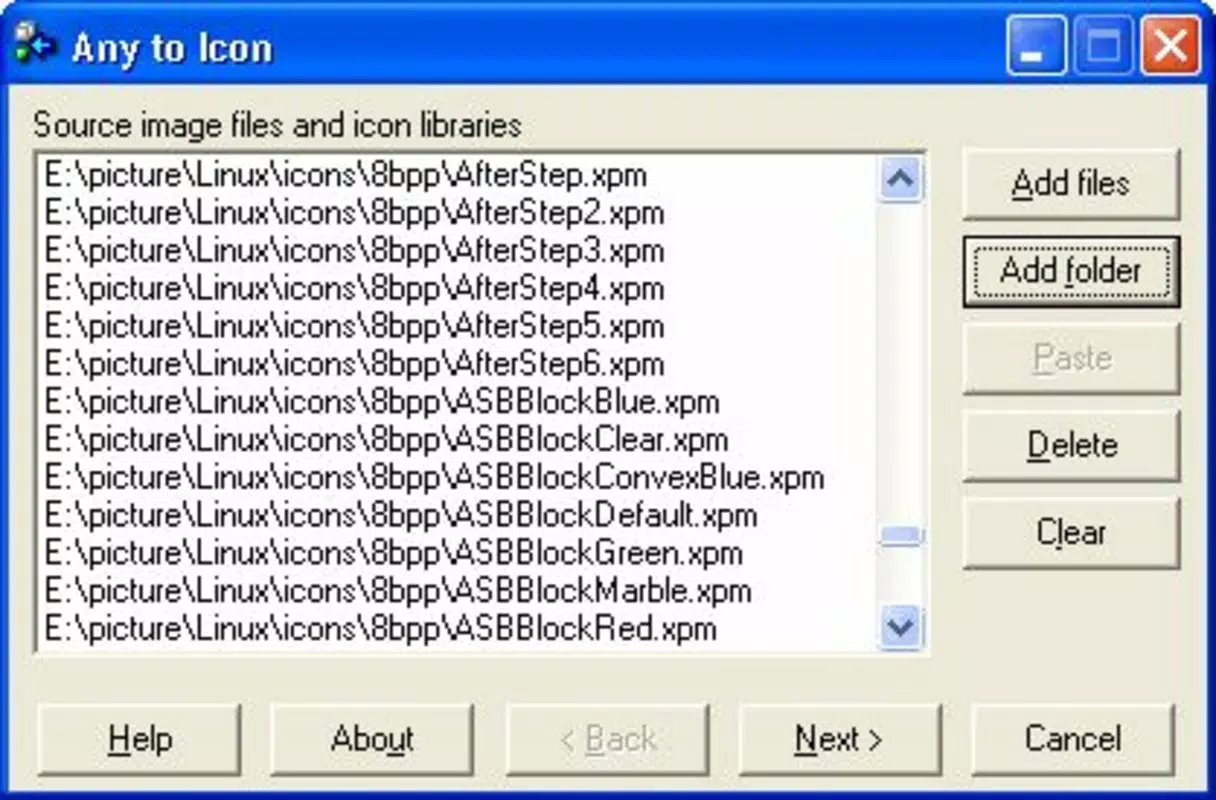
- Intuitive Interface: With a minimalistic layout, users can load an image and initiate conversion with just a few taps, eliminating complex workflows and reducing the learning curve.
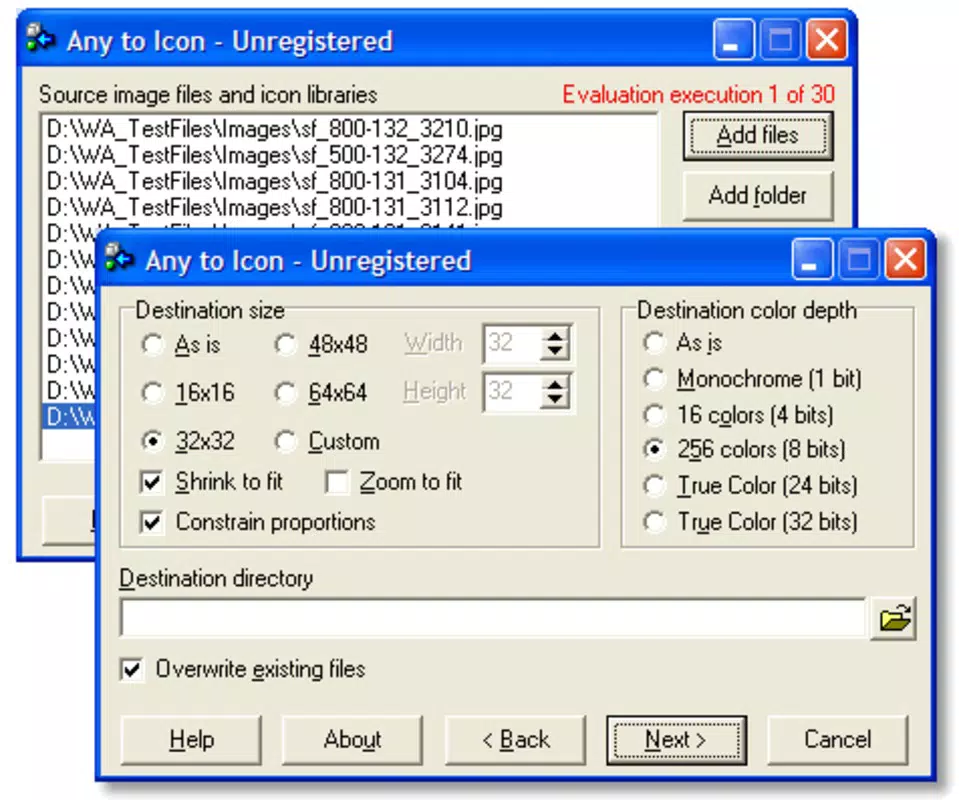
- Color Depth Options: Users can choose between 256-color icons and True Color icons, enabling flexibility in balancing file size and visual fidelity based on project requirements.
- Icon Extraction Tool: The app allows users to extract icons from system folders and libraries, saving them to a preferred location for reuse or modification.
- Resolution Flexibility: It supports the creation of icons in multiple resolutions, ensuring compatibility with various display settings and Windows versions.
For example, a designer preparing an application for distribution can import a high-resolution PNG, convert it to a multi-resolution icon with True Color support, and extract it for integration into their build. Similarly, a user customizing their desktop can convert a favorite image into a 256x256 icon for a new shortcut. These features collectively enhance usability and adaptability across different workflows.
Interface, UX & Performance
The interface of Any to Icon is designed with simplicity and efficiency in mind. It features a clean layout with clearly labeled buttons and minimal visual clutter, allowing users to focus on the core task: image-to-icon conversion. Navigation is straightforward, with a logical flow from image selection to output configuration and final export.
Visual elements are functional rather than decorative, aligning with the app’s utility-driven purpose. The app’s responsiveness is consistent across devices, though specific performance metrics were not disclosed by the developer. Although the developer did not list formal performance metrics, the app appears to operate smoothly during basic conversion tasks, with minimal lag or crashes reported in user environments.
Stability is maintained through a streamlined feature set, avoiding unnecessary bloat. The app does not require extensive permissions or background processes, which contributes to consistent performance on both older and newer devices. Users can expect reliable operation during standard usage, though detailed testing across device categories was not provided.
Platform Compatibility & Technical Requirements
Any to Icon is available on the Android platform, though the specific OS version requirements were not listed. The app’s file size is 2.1 MB, indicating a lightweight footprint suitable for devices with limited storage. While the developer did not specify minimum OS requirements, the app’s long-standing presence suggests compatibility with a broad range of Android versions.
Users should ensure their device meets general Android system standards for running utility applications. The absence of detailed technical specifications means compatibility cannot be guaranteed across all devices, particularly older or non-standard models. However, the app’s small size and focused functionality suggest it will run efficiently on most modern Android smartphones and tablets.
Pros and Cons
Pros
- Supports multiple image formats for flexible input options.
- Simple, intuitive interface suitable for users of all experience levels.
- Offers color depth customization for better visual control.
- Includes icon extraction from folders and libraries.
- Lightweight file size (2.1 MB) ensures fast installation and minimal storage use.
Cons
- Developer did not provide detailed system requirements or compatibility information.
- Specific performance benchmarks or optimization details were not disclosed.
- Only available on Android; no iOS or other platform support was indicated.
- No information on update frequency or future development plans.
- Limited to icon conversion—no additional editing or design tools included.
FAQ
Is Any to Icon safe to download and install?
Yes, the app is designed as a utility tool and does not require excessive permissions. Its lightweight nature and focus on file conversion reduce potential security risks when obtained from trusted sources.
Can I use Any to Icon on iOS devices?
The developer has not indicated iOS availability. The app is currently only confirmed for Android platforms.
What file formats can I convert to icons?
Any to Icon supports common image formats including BMP, JPEG, GIF, PNG, and PSD, allowing users to convert images from various sources.
How do I extract icons from system folders?
The app includes a built-in function to browse and extract icons from folders and libraries, which can then be saved to a chosen directory for reuse.
Does the app support high-resolution icons?
Yes, users can create icons in multiple resolutions, ensuring compatibility with different screen sizes and display settings.
Final Thoughts
Any to Icon stands out as a focused, reliable tool for users needing to convert images into Windows icons with ease. Its support for multiple formats, intuitive interface, and flexibility in color depth and resolution make it a valuable asset for developers, designers, and tech-savvy individuals. While it lacks advanced editing features and platform diversity, its core functionality is executed efficiently and without unnecessary complexity.
For those seeking a secure, lightweight, and straightforward way to generate or extract icons, Any to Icon delivers consistent value. It’s particularly well-suited for users who prioritize functionality over flashy design. If you’re working on a software project, customizing your desktop, or managing icon assets, this app offers a practical solution.
Download Any to Icon now


